Export from Figma
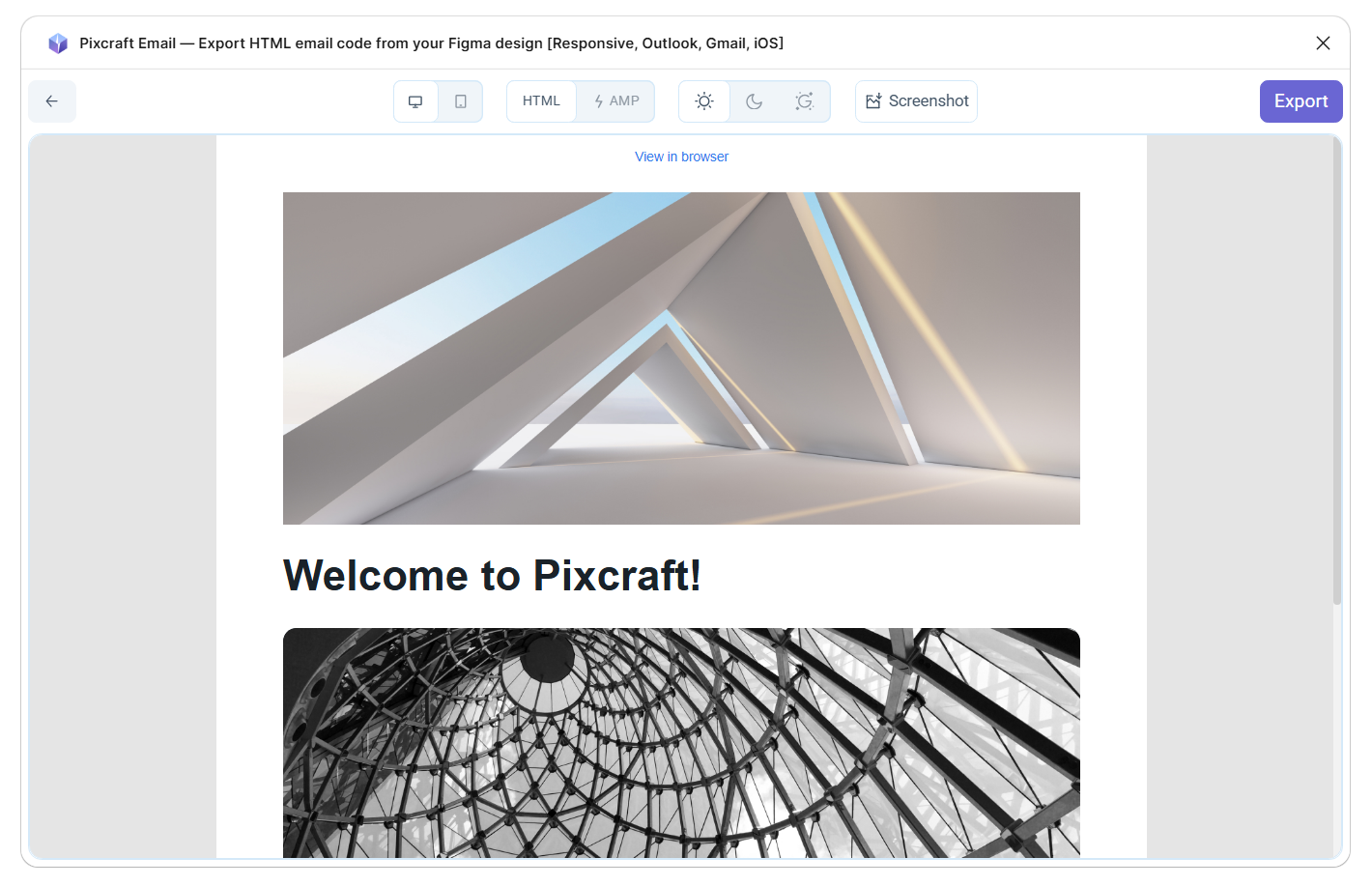
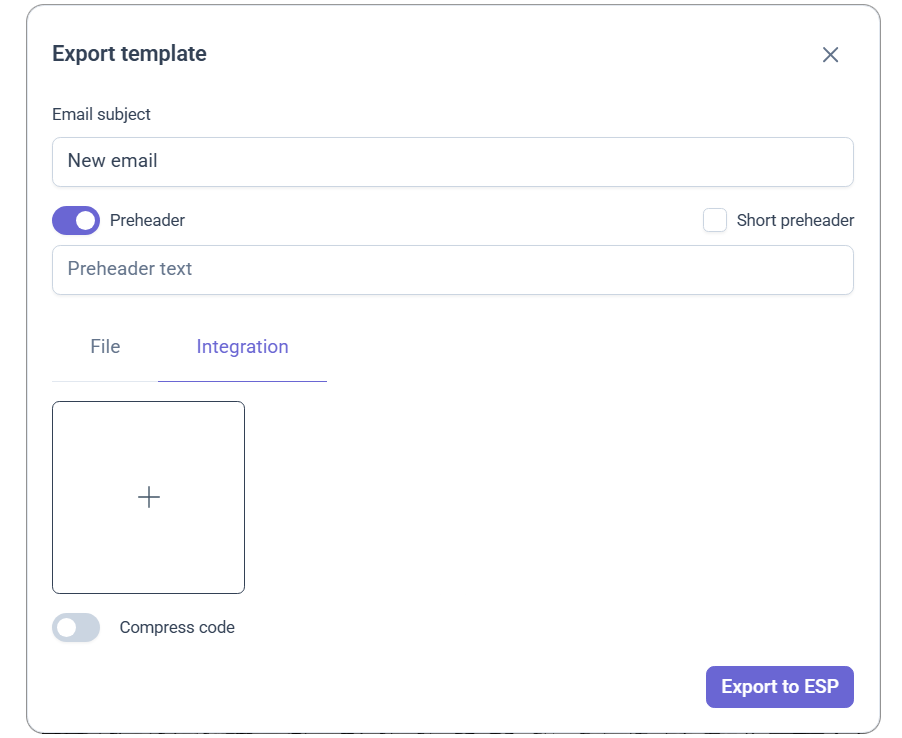
To obtain the final email code, select the email frame, click Preview, then Export — to access the export settings.
In the "Email subject" field, you can specify the email subject.
The "Preheader" is the text displayed next to the subject in the ISP but is not shown after opening the email. Enabling the "Short preheader" option allows only the preheader text to be displayed next to the subject, preventing the display of subsequent email text there. Having an invisible preheader can negatively impact deliverability if you, as the sender, have a poor reputation, so there is an option not to use this feature.
Download
On the Download tab, you can download the finished email in one of the formats:
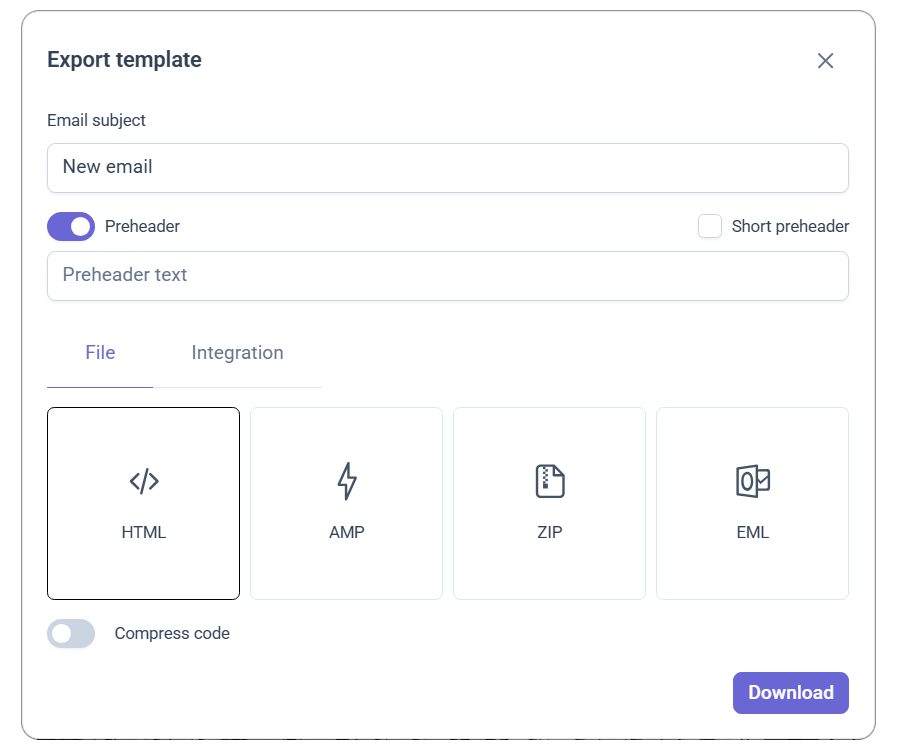
- HTML — ready-made HTML code for the email;
- AMP — version of the email with dynamic elements;
- ZIP — archive containing the HTML file of the email and all images. If needed, you can also add AMP and TJML versions of the email to the archive;
- EML — email file ready for sending through an email client (Outlook, Thunderbird, and others).
The Minify code option is also available to reduce the size of the final file.
Integrations
On the Integrations tab, you can export the email directly to an ESP platform. During the first export, you need to provide connection parameters. In subsequent exports, it will be sufficient to choose the desired integration.
Available platforms: