

Paste from Figma
TIP
This feature is experimental — complex layouts may not transfer perfectly, and the template can be refined in the editor after pasting.
Paste from Figma lets you move a layout from Figma into the Pixcraft block editor and continue working with it as with a regular block template: edit texts, images, and styles, adapt it for mobile devices, and export the email.
With the Pixcraft plugin for Figma, the work happens on the Figma side: the layout is built with Figma tools, and the plugin converts it into ready-made HTML and AMP email code.
Paste from Figma works differently: the layout is moved into the Pixcraft block editor and becomes a regular block template — it is edited as blocks, and Figma is only needed as the source of the layout.
How to paste a layout
- Copy the frame you need in Figma.
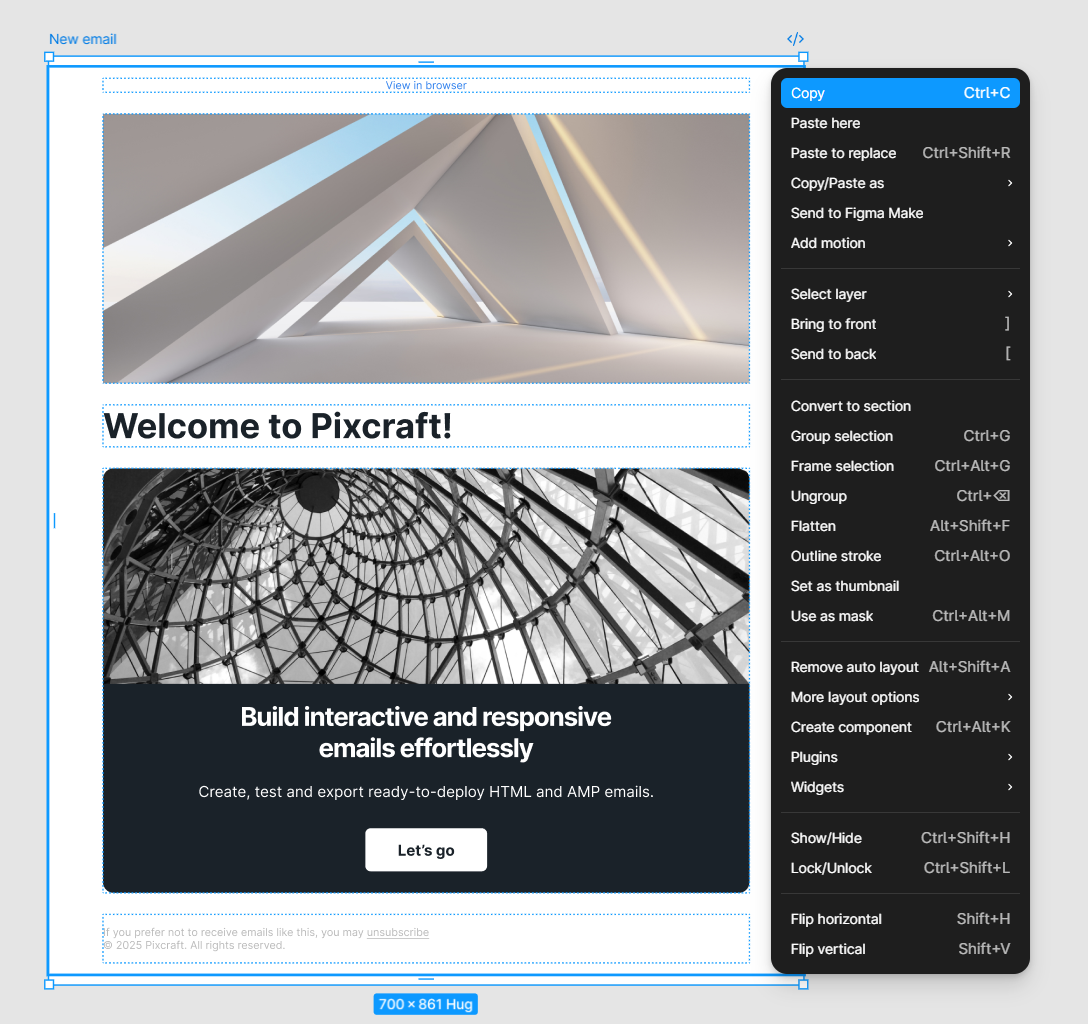
- Paste it into the Pixcraft editor from the clipboard — press Ctrl+V (on macOS, ⌘V).
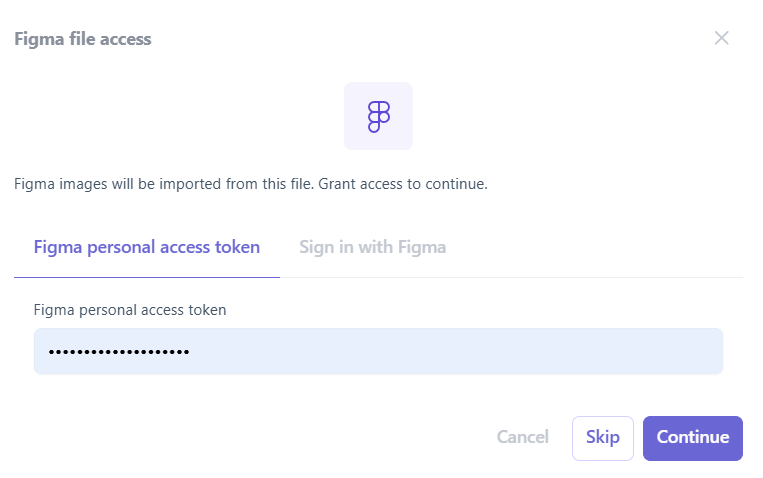
- In the dialog that opens, provide your personal Figma API key (see how to create it in the section below) and confirm the paste.
TIP
Keyboard shortcuts depend on the operating system and personal computer settings. If the default shortcut does not work, check your system settings.
After pasting, the layout becomes a regular block template.
If you click Skip in the paste dialog, only the structure and texts are transferred to the template, without images. You can add them later, one by one.
Personal Figma API key
A personal Figma API key is required to paste a layout with raster images — the editor uses it to download images from the layout. The key is entered in the paste dialog.
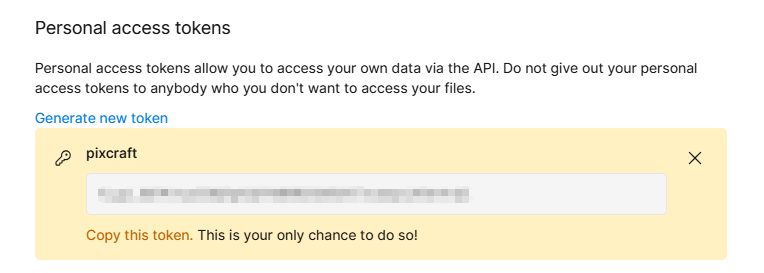
You can create a key in your Figma account settings: open Settings, the Security tab, the Personal access tokens section, and click Generate new token. Copy the token right after creating it — it is not shown again.
INFO
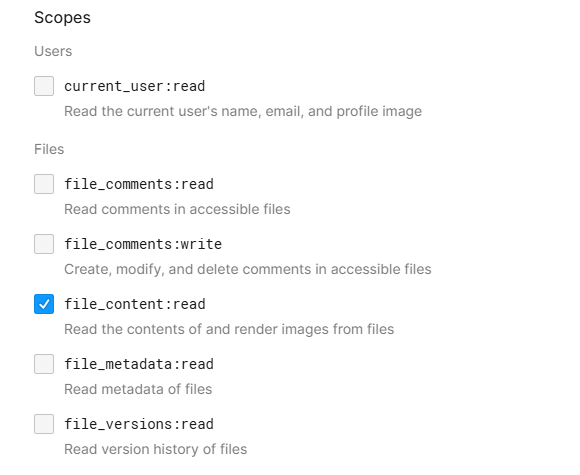
The token needs the file_content: read permission.
Pasting images one by one
If you paste the layout without images (Skip), empty image blocks remain in their place. You can fill them manually:
- Copy the part of the layout you need in Figma as PNG — a layer, a group, or a frame.
- Select an empty image block in the template and paste the image from the clipboard — it goes into the selected block.
Any image from the clipboard will work — not only from Figma: the editor automatically recognizes what is copied — a Pixcraft template, a Figma layer, or a plain image. Fragments are moved between Pixcraft templates the same way: copy a block or part of a layout in one template and paste it into another.