

Test sends
A test send allows you to send an email directly from Pixcraft to check how it looks before a mass mailing.
Sending a test
To send a test email, click the Test send button on the top editor bar.

In the window that opens, you can specify the recipient's email address. By default, the address linked to your account is suggested.
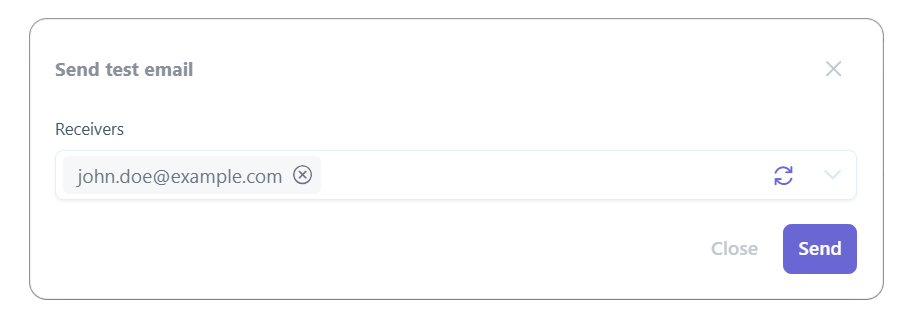
Email confirmation
The address linked to your account is confirmed automatically.
To send a test email to a different address, the recipient must confirm their consent to receive test emails. A confirmation email will be sent to the specified address. After confirmation, the address can be used for test sends.
Test email header
Each test email contains a warning header:
ATTENTION! This is a test email sent from the Pixcraft email template builder.
You have previously confirmed that you wish to receive test emails, but you can always unsubscribe.
The header is displayed regardless of the email format (HTML or AMP).